

Attachments
Email attachments is used for attaching files to emails.
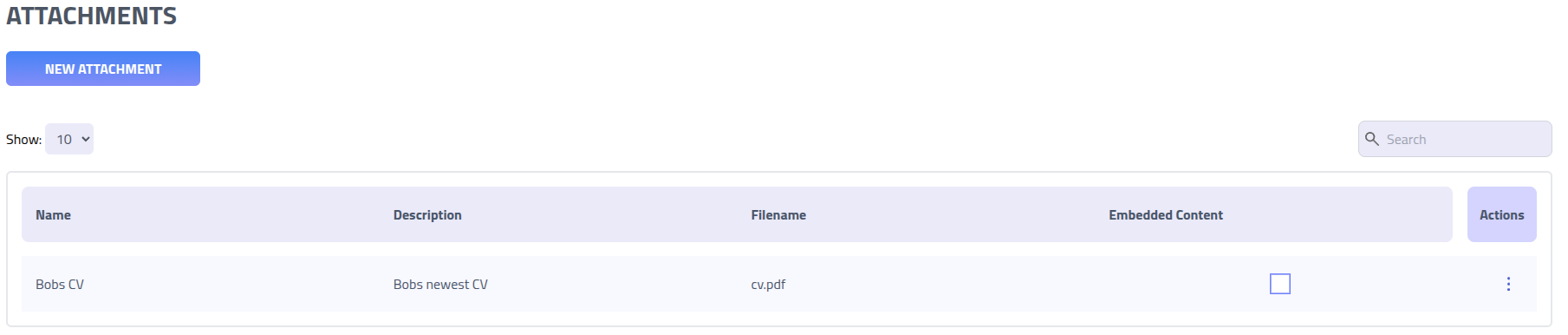
Create new attachment
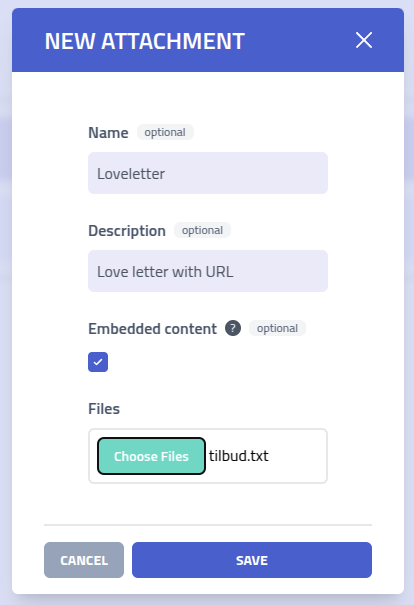
| Setting | Description and Usage |
|---|---|
| Attachment Name | Identifier for managing and organizing attachment files within your template library |
| Description | Information about the attachment's purpose, content, or intended usage scenario for team collaboration |
| Dynamic Content | Enable processing of embedded template variables (e.g., {{.URL}})
within plain text file formats for personalized attachment content |
| Send as calendar | Available for .ics calendar files. Delivers the file as a native
calendar invitation so Outlook and Exchange Online show the Accept, Tentative and
Decline banner in the reading pane instead of a plain file attachment. Combine with
Dynamic Content to personalize the invite for each recipient. See
Calendar invites below. |
| File Upload | Select single or multiple files for attachment creation. Bulk uploads automatically generate individual attachment entries |
Calendar invites
Calendar invitations are an effective simulation scenario because recipients tend to trust
meeting requests and act on them with less scrutiny than email. When you upload an
.ics file you can enable Send as calendar so it is delivered as
a native invitation. Outlook and Exchange Online then render the Accept, Tentative and Decline
banner directly in the reading pane, with no attachment to open.
The option only appears for files with an .ics or .ical extension.
Any other file type is always sent as a regular attachment, even if the option was set
earlier.
Personalizing the invite
To use template variables such as {{.URL}}, {{.Email}} or
{{.Tracker}} inside the invite, also enable Dynamic Content.
With it on, each recipient receives an invite rendered with their own tracking link and
details. With only Send as calendar enabled, the file is delivered as is and
the variables are sent literally. The two options are independent, so enable both for a
personalized invite.
Calendar invite builder
Phishing Club includes a calendar invite builder on the Tools page that
generates a valid invitation for you, so you do not have to write the VCALENDAR
body by hand. It sets METHOD:REQUEST and the required fields, and folds lines to
the lengths Exchange expects.
Fill in the summary, organizer, attendee, location, description, date, time and duration. The
attendee, location and description accept template variables, so the defaults use
{{.Email}} for the attendee and {{.URL}} for the location and
description. Choose how the time is read: the recipient local time, UTC, or a
named timezone that carries its own VTIMEZONE block. You can add a reminder,
regenerate the UID, then copy the result or download the .ics file.
The builder also exposes additional fields for realistic simulations. Under Event:
set CLASS to Public, Private or Confidential; set SEQUENCE to a
value higher than an existing event to force a silent update in the recipient calendar without
a new notification; set a URL property that some clients render as a link in the
event detail; and add an HTML description that Outlook renders in the reading
pane in place of the plain text description. The attendee initial response can be set to
Needs action, Accepted, Tentative or Declined.
Under Microsoft / Outlook: enter a Teams meeting URL to
render a native Join button in Outlook and Teams. Any URL works here, not only real Teams
links. Enable Suppress RSVP replies to add
X-MICROSOFT-ISRESPONSEREQUESTED:FALSE, which prevents Outlook from sending
acceptance notifications back to the organizer address. Disallow counter
proposals blocks attendees from proposing a different time.
Show as controls the availability indicator: Free, Busy, Tentative or Out of
office.
Under Google: enter a Conference URL to add
X-GOOGLE-CONFERENCE, which renders a Google Meet join button. Google restricts
this property to meet.google.com addresses. For arbitrary URLs, use the Location
field instead, which Google renders as a clickable link when no native Meet button is
present.
Upload the downloaded file as an attachment, enable Send as calendar, and add
Dynamic Content when the invite uses template variables. For a campaign where
each recipient should be treated as a separate meeting, include a template variable in the
UID so calendar clients do not collapse them into one event.